
Home · Guides / 4
Guide 4 of 5
How to create a .onion web server
Tor is now forwarding port 80 to 127.0.0.1:80. NGINX should listen only on localhost so the site is reached through the onion address, not as a public clearnet vhost.
Install NGINX
-
Install NGINX from APT.
sudo apt install nginx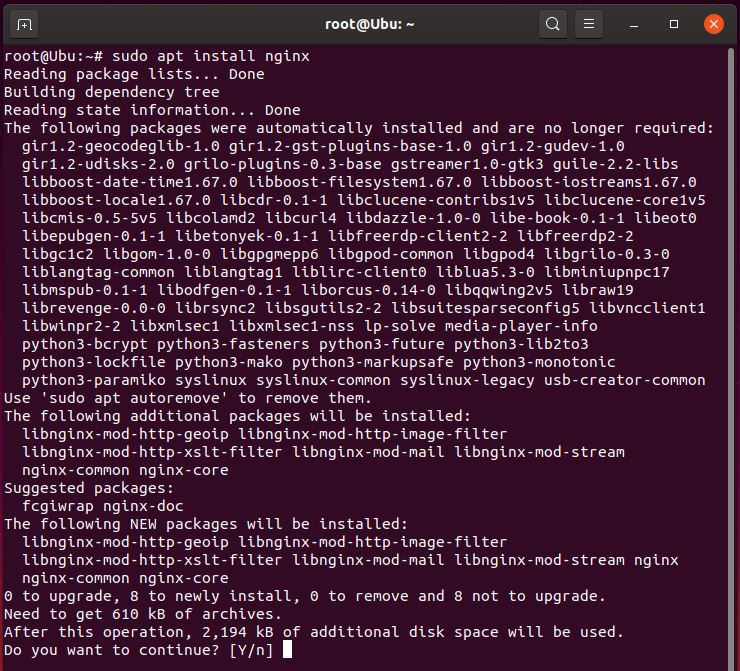
NGINX installed from the Ubuntu repository. -
Edit the default site so it is linked to Tor’s localhost listener.
sudo vi /etc/nginx/sites-enabled/default -
Change
listenso it binds to 127.0.0.1, and setserver_nameto your onion address.server { listen 127.0.0.1:80 default_server; root /var/www/html; index index.html index.htm index.nginx-debian.html; server_name websitehz44l75xucojrrqofi4v7rn4y75wu6ocn7zbwjazgr44prfyd.onion; location / { try_files $uri $uri/ =404; } }Replace the server name Use the hostname from/var/lib/tor/hidden_service/hostname. Comment out anylisten 80 default_server;line that binds on all interfaces.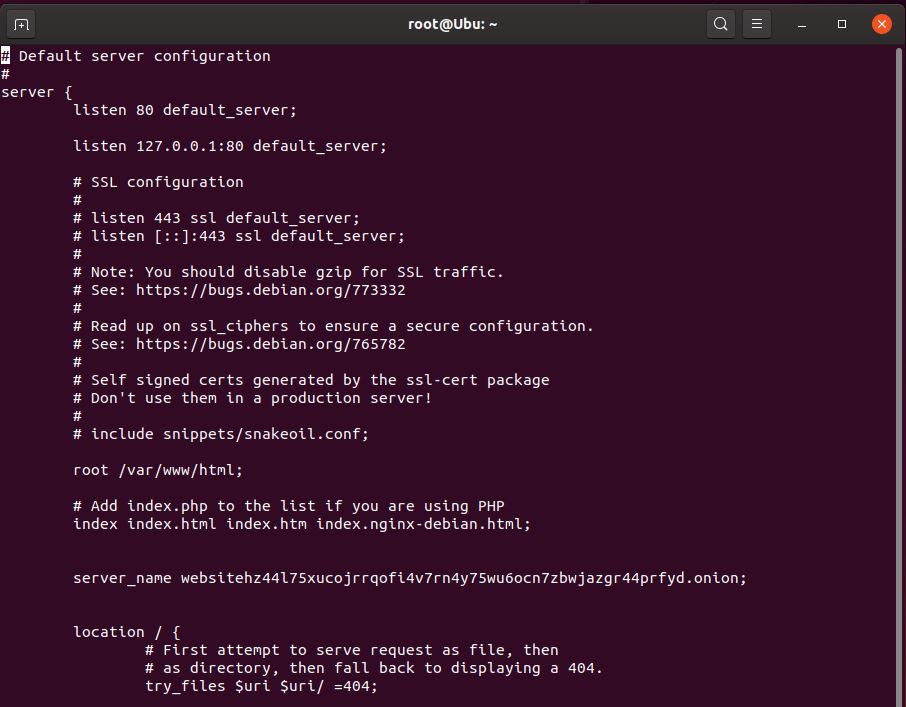
Default site edited to listen on localhost and use the onion name. -
Restart NGINX.
sudo service nginx restart
Publish a test page
-
Go to
/var/www/htmland remove the default files.
Document root cleared of the packaged index page. -
Create a simple test file.
vi index.htmlType some text, then save.
-
Open the site in Tor Browser and confirm it loads. Your address will differ from the example.

The test page served over the onion address.